Resource Editor
Tree View (Dendroid Editor)
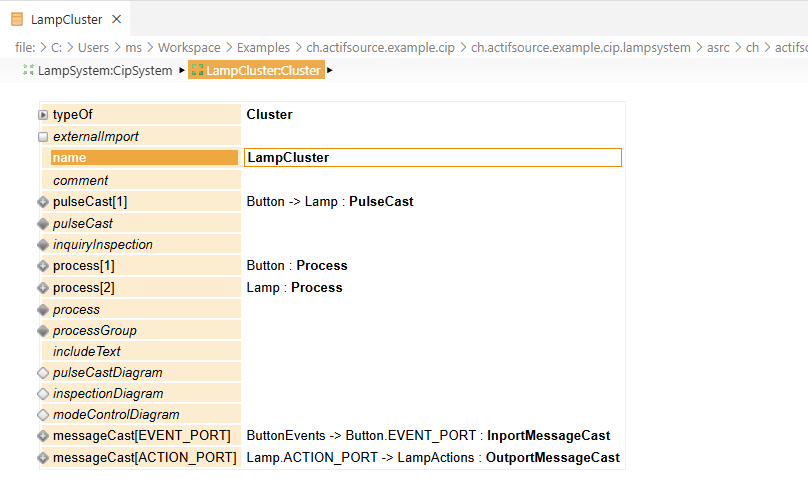
The resource editor - the dendroid editor - is the main editor for resources. It shows a
resource as a tree of its properties. Every row is one property, on the left its name, on the
right its value. An owned resource is a nested table. While it is closed it shows as
Name : Type. A property without a value is an empty row. A property with several values repeats
its row.
Editing, content assist and breadcrumb behave as in the Eclipse dendroid editor. These points are different:
New referenced resources - a resource whose aspect names several possible places is created without asking. See Create a new resource.
An editor of VS Code - a change marks the tab dirty. Ctrl+S saves. files.autoSave applies.
Shortcuts - they are matched by the extension itself, which brings a few limitations - see Keyboard Shortcuts.
Large properties - a property with many values is loaded page by page. Scrolling further loads the next page.
Navigate the tree - selection follows the cell. Name and value are selected separately. Inside a value the cursor keys move the caret. They leave the field at the border of the text.
| Device | Action |
|---|---|
| Keyboard | CursorUp / CursorDown - previous / next row, across tables |
| Keyboard | CursorLeft / CursorRight - previous / next cell of the row |
| Keyboard | Enter on a closed composition - open resp. close the subtree |
| Keyboard | Enter on an aggregated resource - open that resource |
| Mouse | Ctrl+Click - open the referenced resource, property or type |
Follow a reference - Ctrl+Click works on the value of a reference property, on a property
name, on the decoration behind it and on the type of a closed row. The index of a repeated
property ([2]) is a number. It is no link.
Zoom into a subtree - the breadcrumb shows the path of the selection. It starts at the root resource of the file. A click on a segment zooms to that subtree. A segment further left zooms out. The leftmost segment shows the whole file. The chevron of a segment opens its children. The zoom changes nothing in the model.
Insert a value - what is inserted follows from the property. An owned resource is created. An attribute asks for its value. An association is filled with the content assist.
| Command | Shortcut | Available on |
|---|---|---|
| Insert Here | Enter or Alt+Enter | An empty row - appends a value |
| Insert After | Ctrl+Enter | A row with a value - inserts after it |
| Insert Before | Ctrl+Shift+Enter | A row with a value - inserts before it |
Edit a code snippet - the snippet is edited in a text field with syntax highlighting. Ctrl+Space opens its content assist.
Use the context menu - the editor brings its own menu. It holds Cut, Copy, Paste, Copy GUID, Delete, Edit, the three Insert commands, Sort Property by… and the Show … commands. Each appears only where it applies.
| Shortcut | Command |
|---|---|
| Ctrl+S | Save |
| Ctrl+Z / Ctrl+Y | Undo / Redo |
| Ctrl+C / Ctrl+X / Ctrl+V | Copy / Cut / Paste |
| Enter | Insert Here resp. Edit |
| Ctrl+Enter | Insert After |
| Ctrl+Shift+Enter | Insert Before |
| Delete / Shift+Delete | Delete / Delete Model |
| Alt+Shift+N | New… |
| F2 | Rename… |
| Ctrl+Shift+G | Open Resource by GUID |
Content assist
The value of a reference property (an association) is entered with the content assist. It proposes the resources allowed as the value of that property.
| Device | Action |
|---|---|
| Keyboard | Ctrl+Space in the value field |
| Keyboard | Ctrl+Space on the property name (opens the assist of its value) |
Typed letters filter the proposals. The filter matches the beginning of the proposal and ignores the case. CursorUp and CursorDown select a proposal. Enter takes the selected one. Escape closes the assist.
The content assist of an attribute proposes the allowed values. The type of an owned resource proposes the types allowed for it. Only reference properties offer the creation of a new resource.
Reference an existing resource
Select the resource from the content assist to reference it.
A name typed into the value field is also matched when the field is left. The content assist need not be opened for that. A resource of that name is referenced if it is allowed as the value. The text stays as it is when no resource matches.
Create a new resource
A new resource can be created from the content assist instead:
- Type the name of the new resource in the value field.
- Open the content assist. Every type a new resource may be created for is offered as an entry new, with the comment of the type and its namespace and name below it.
- Select the entry of the type you want.
The resource is created and the property references it. The selection stays on the property. The new resource itself is not opened. Use Ctrl+Click on the reference to go there.
Its name is the text typed into the value field. Selecting new with an empty value field asks
for the name. This happens as long as the type is a NamedResource. A type that needs no name is
created without asking. An abstract type offers its concrete types in a second step.
Where the resource is created depends on the UseRangeRestrictionAspect of the property. The
aspect names the places a new value may be created at - below the outport of a process for a new
outport message, to name one. Without such an aspect the resource is created in the package of
the referencing resource.
A property whose aspect names several places is the one case VS Code decides on its own: the new resource is created in the package of the referencing resource. Eclipse asks which place to use (see New referenced resource of the Eclipse manual).